Best AI Logo Tools for Custom Edits: The Official 2026 Guide
“Fully customizable” shows up in the marketing copy for nearly every AI logo maker out there, but that phrase doesn’t mean the same thing across tools. It’s a claim worth testing rather than taking at face value.
For some logo makers, customizable means you can change a color and maybe swap a font. For others, it means opening something closer to a real design editor, where every shape, curve, and line of text is still yours to move. That gap matters more than it might seem, since it should factor into which logo maker you pick, not just the first logo it generates.
So instead of judging these tools on their first output, we tried to break them. In this official guide, we generated a logo on each platform, then spent time actually editing it. That meant swapping pieces out, resizing things that weren’t supposed to move, and seeing what happened when we pushed past the obvious controls. Below is what held up, and what didn’t.
Three edits every business should be able to make
Before ranking anything, it helps to know what “editable” should actually guarantee. Regardless of industry, most businesses eventually need to make at least one of these three changes to a logo after it’s first generated:
- Swap out a single icon or shape. The AI won’t always nail the visual metaphor on the first try, and starting over from scratch shouldn’t be the only fix.
- Adjust the layout without breaking it. Stacking the logo for an app icon, widening it for a website, or simplifying it for a favicon all require moving pieces around rather than regenerating a new design.
- Export it in a format that can be resized later. A locked PNG is a dead end the moment you need posters, T-shirts, or anything printed larger than a business card.
Scorecard: How each tool handled real edits
Instead of a plain feature checklist, each tool below is scored 1 to 5 on how much control it actually gave us once we started editing, not just generating.
| Tool | Editing Depth | Icon Swap Without Breaking Layout | Text Curves & Custom Paths | Vector Export | Free to Fully Edit |
| Design.com | 5/5 | Yes | Yes | Yes | Yes |
| BrandCrowd | 5/5 | Yes | Yes | Yes | Yes |
| Wix Logo Maker | 4/5 | Yes | No | Advanced tier only | Design is free, editing stays free |
| Canva | 3/5 | Partial | No | Pro only | Partial |
| Fiverr | 3/5 | Partial | No | Paid packages only | Partial |
| Shopify Logo Maker | 1/5 | No | No | No | N/A, no editor at all |
The edit challenge: Our testing method
Rather than judging tools on fresh AI output, we ran an “edit challenge” on each one: generate a logo, then apply the same three edits as above and see where each tool pushed back.
The business behind the test brief was Ember & Salt, a small-batch spice and seasoning company. It’s a brand that needed a mark with some personality, room for a tagline, and a logo that could realistically shrink down to a spice jar label.
For each platform, we generated an initial concept, then tried to: swap the primary icon for a different one, reflow the layout into a stacked version, and export a file that would still look sharp printed two inches tall.
Some tools handled all three without friction. Others made it clear pretty fast where the editing stopped, and the paywall or dead end began.
Tool-by-tool: What we could and couldn’t edit
1. Design.com
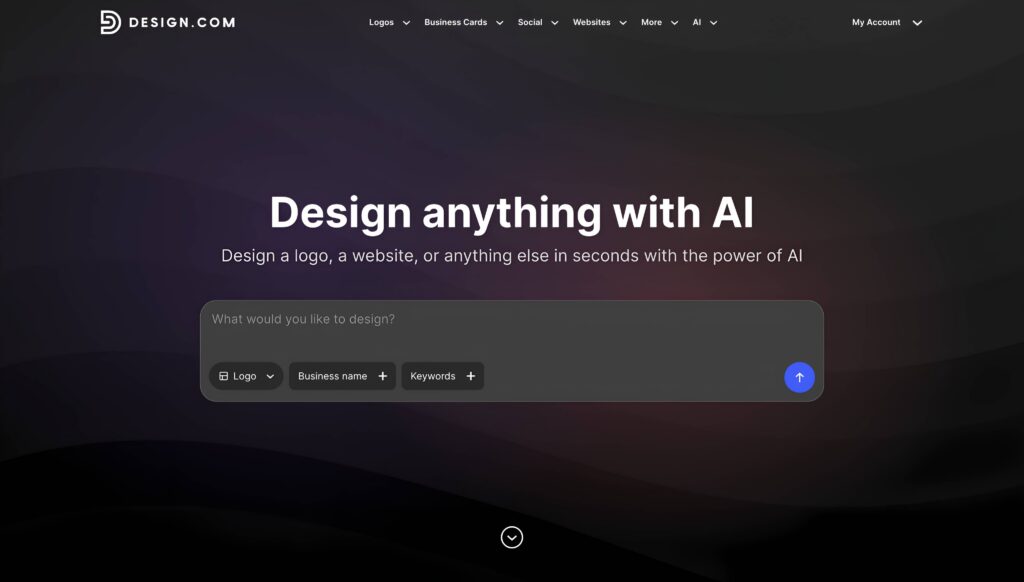
Design.com is an all-in-one AI branding platform built for entrepreneurs and small businesses that want a professional logo without hiring a designer or learning design software. Its AI logo generator is the entry point into a much larger toolkit, but on its own, it’s built to take someone from a business name to a finished, downloadable logo in minutes.
Running the Ember & Salt brief through it confirmed just how much the AI generates from a single prompt. Entering the business name along with a few keywords created over 10,000 logo concepts, all tailored to that specific input rather than a generic starting set.
Here are just some of the best ones:
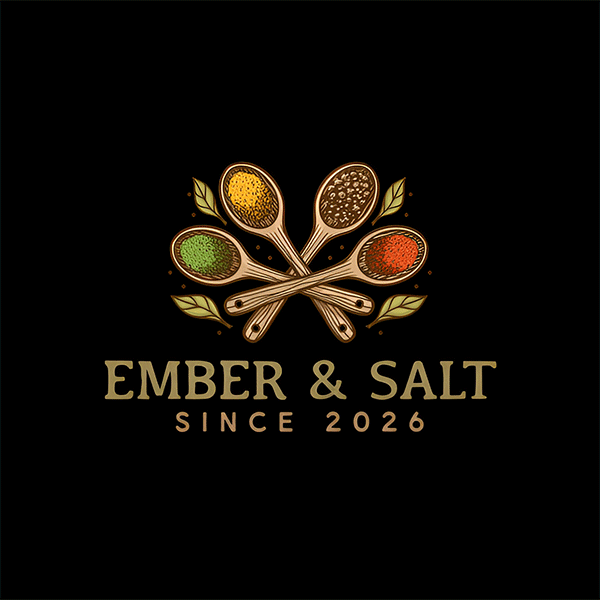
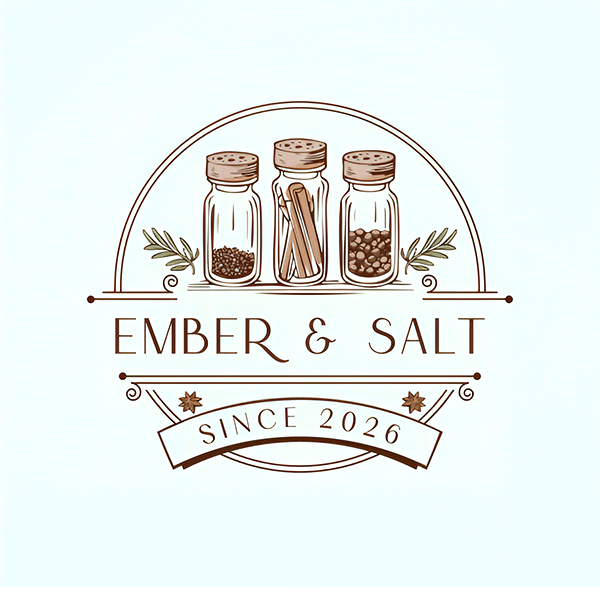
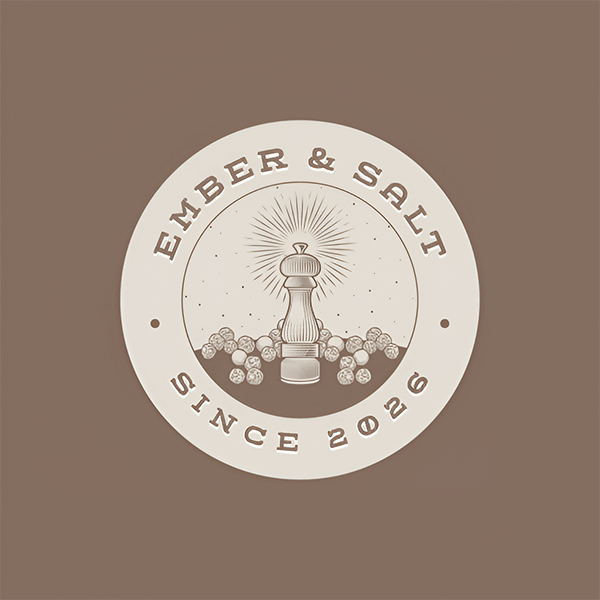
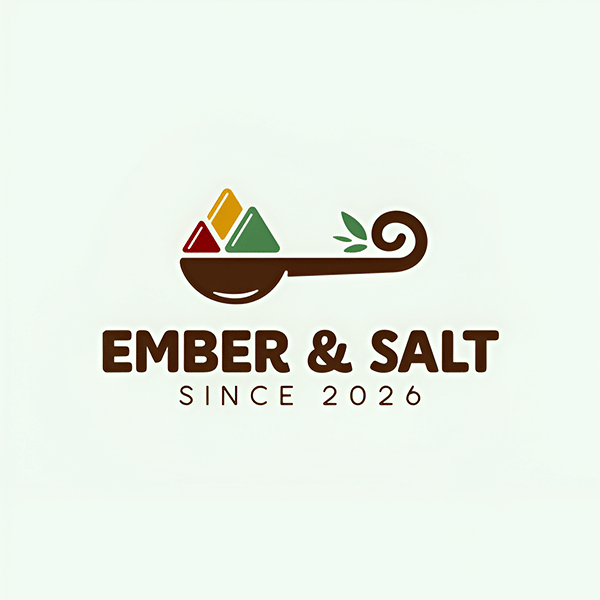
Results could be filtered by style and category and previewed on real-world mockups, such as packaging and signage, until the options were narrowed to those that actually fit the brand.
Where Design.com pulls ahead: AI-native editing
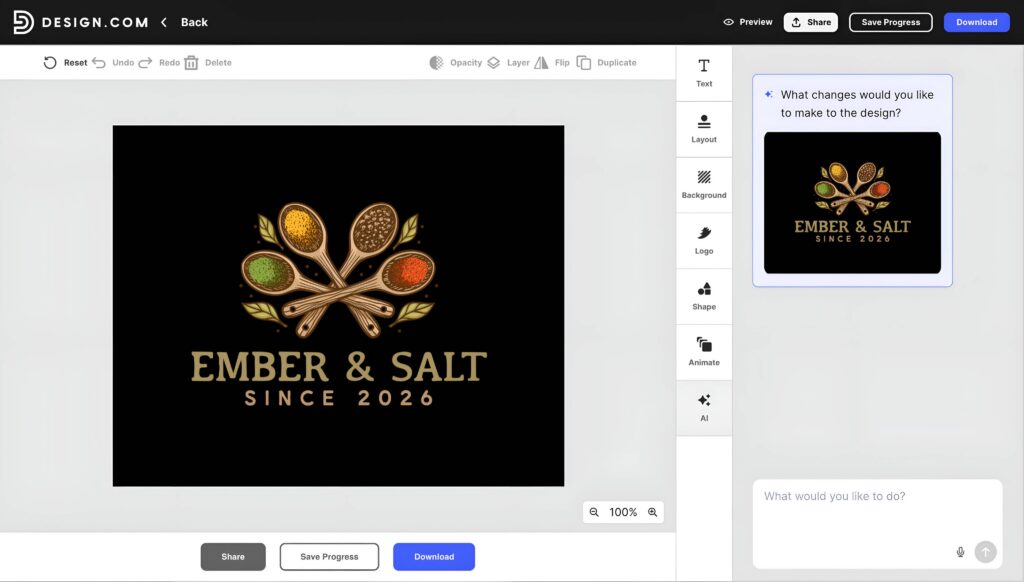
What separates Design.com from most tools on this list isn’t any single feature. It’s that editing itself is AI-assisted, not just AI-generated:
- Edit the logo’s icon using AI, rather than only swapping from a static shape library
- Edit the logo’s text using AI-guided suggestions
- Make changes through a simple chat interface, describing what to adjust instead of manually hunting for the right tool
- All AI edits run on a custom-trained model built to keep outputs copyright-safe
Manual controls are still there underneath that, covering fonts, colors, icons, layout, and spacing, with unlimited changes on paid plans. But the chat-based editing is what made this tool feel like it was doing more of the design thinking alongside the user, rather than just providing tools to click through.
Putting it to the edit challenge
Running the same Ember & Salt logo through the edit challenge confirmed the depth held up past generation. Using the AI chat editor, we started with a simple prompt:
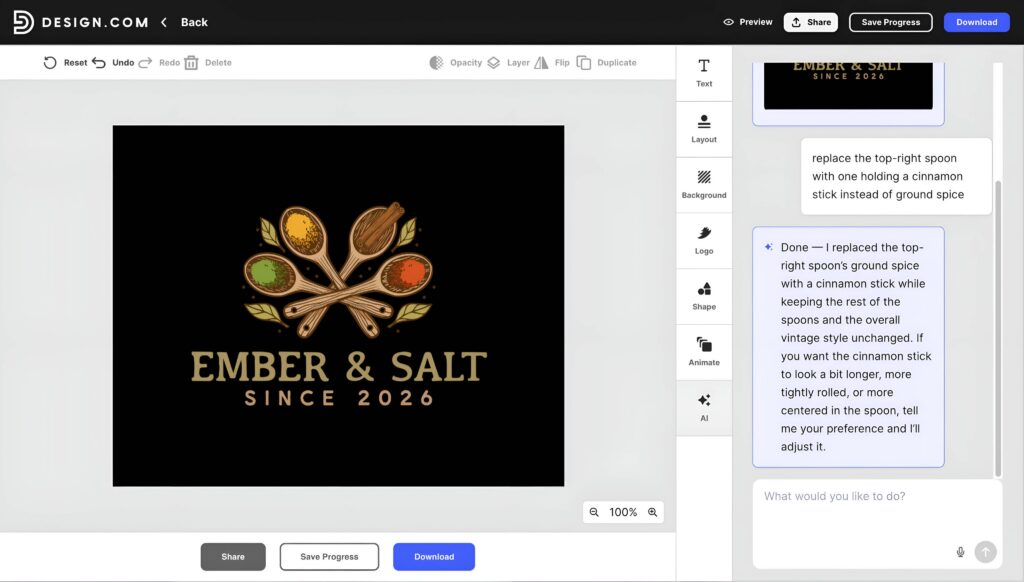
The surrounding spoons and leaf accents stayed in place instead of shifting or overlapping, with the new spoon settling into the same crossed arrangement. Next, we asked it to adjust the color balance across the spice fills:
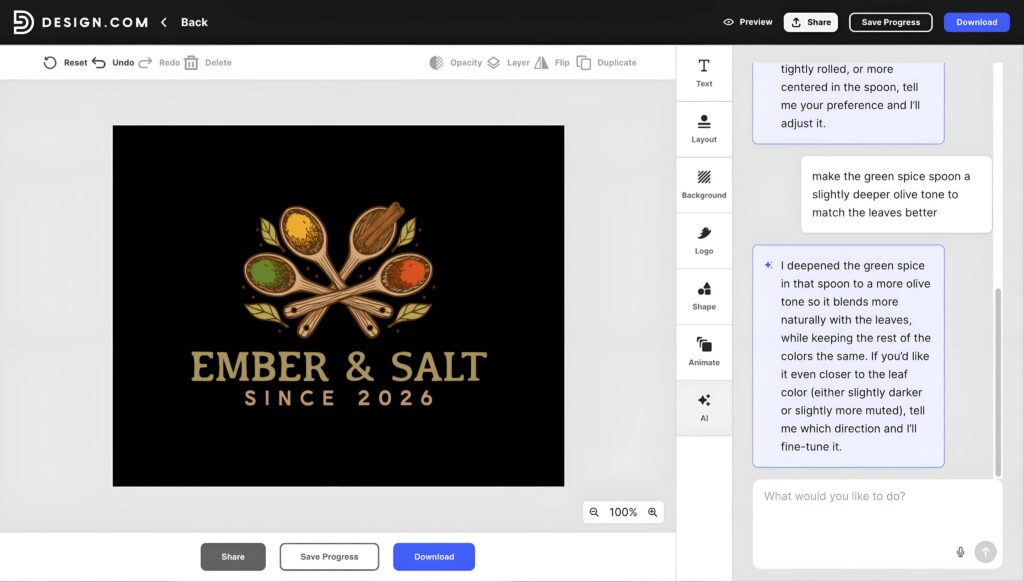
That came back correctly matched without needing a manual color pick. From there, we moved to the layout itself:
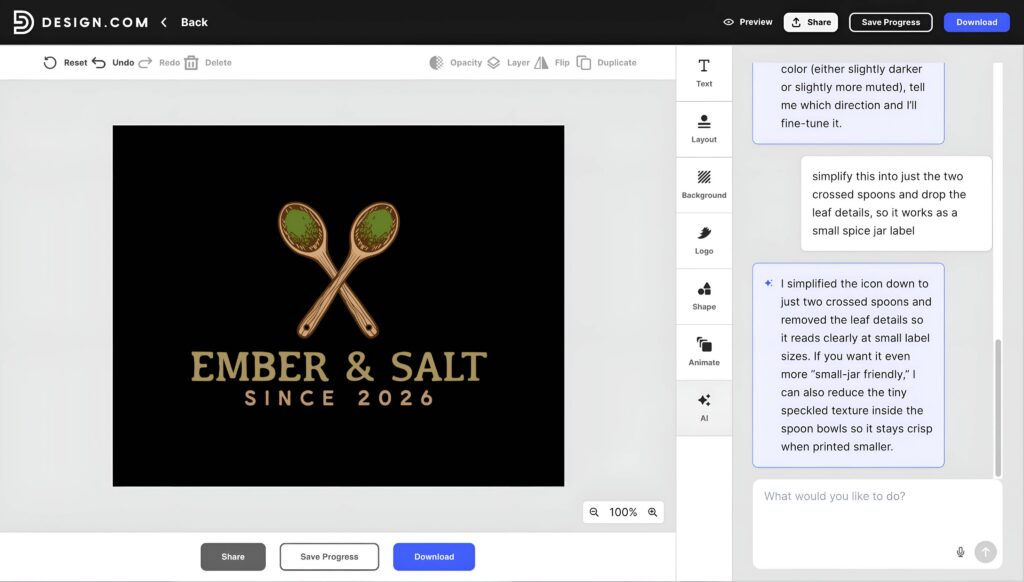
The simplified version kept the same spacing and balance as the full design, without the leaves leaving an awkward gap behind.
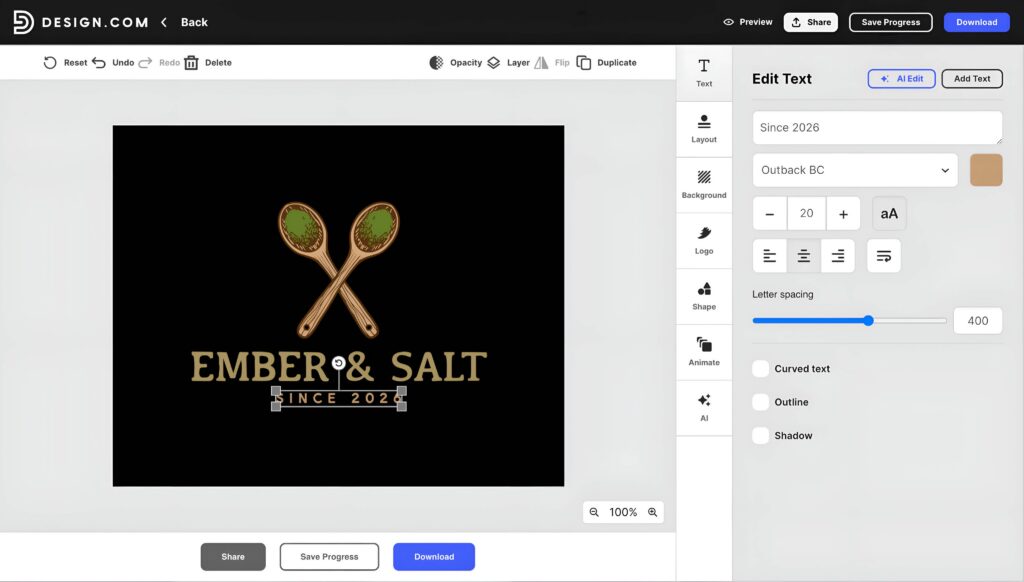
For the last adjustment, we switched to the manual editor instead of the chat, resizing the “Since 2026” text to size 20 so it sits more subtly beneath the business name without drawing attention from the spoons.
Here’s the logo we ended up with after all the editing:
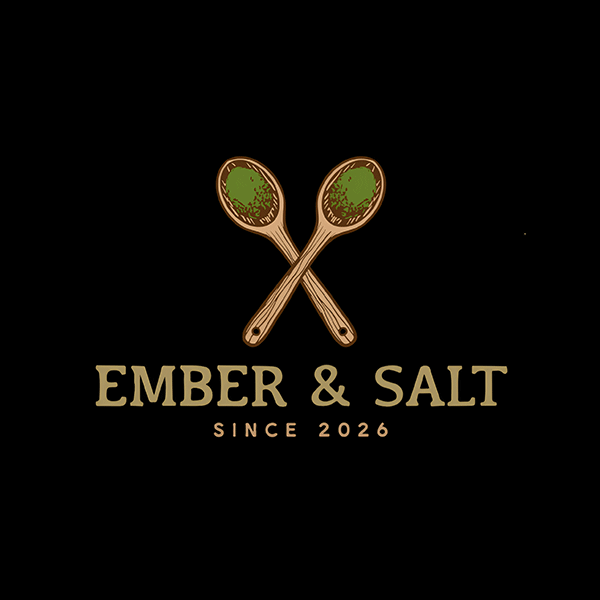
Exporting a vector file for the finished version was free too, with no watermark and no upsell interrupting the process.
What this says about Design.com’s editing
What this session really tested wasn’t any single request, it was whether the platform could stay editable across very different kinds of changes without hitting a wall. An icon swap, a color match, a full layout simplification, and a manual text tweak all lived in the same session, and none of them required leaving the tool, exporting partway through, or working around a limitation.
That’s the real measure of an editable AI logo maker, not whether it can make one impressive change, but whether the depth holds up regardless of what’s being asked of it, chat-based or manual. Design.com passed that test cleanly, which makes it a strong option for anyone who expects a logo to keep changing well after the first draft.
2. BrandCrowd
BrandCrowd’s logo maker takes a different approach to generation than Design.com. Rather than having AI construct each concept purely from scratch, it pairs automated generation with a library of templates built by professional designers, so every AI-suggested concept is rooted in a template a designer actually built.
Entering the Ember & Salt business name along with a few keywords generated 9,600 logo concepts pulled from that designer-made library, narrowed down by industry and style.
Here are just some of them:
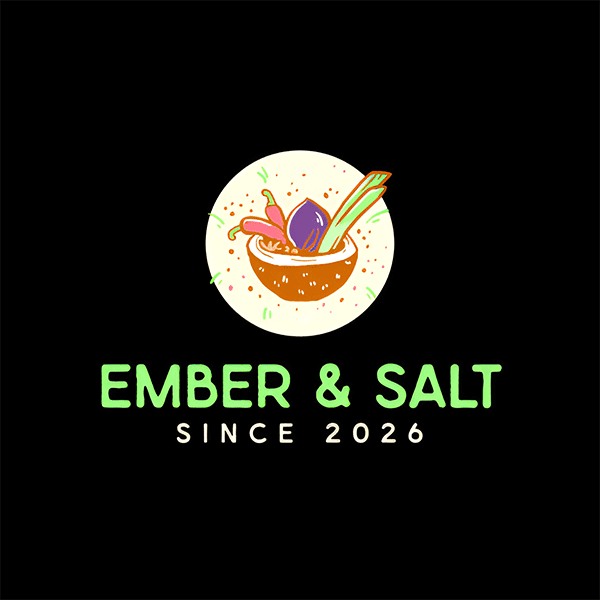
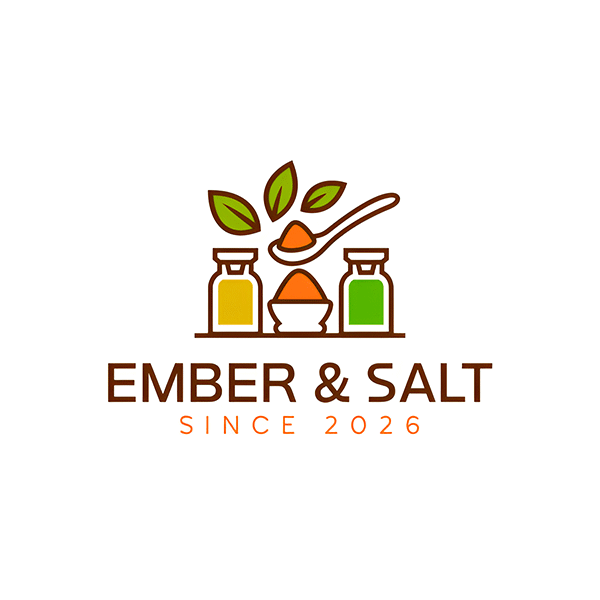
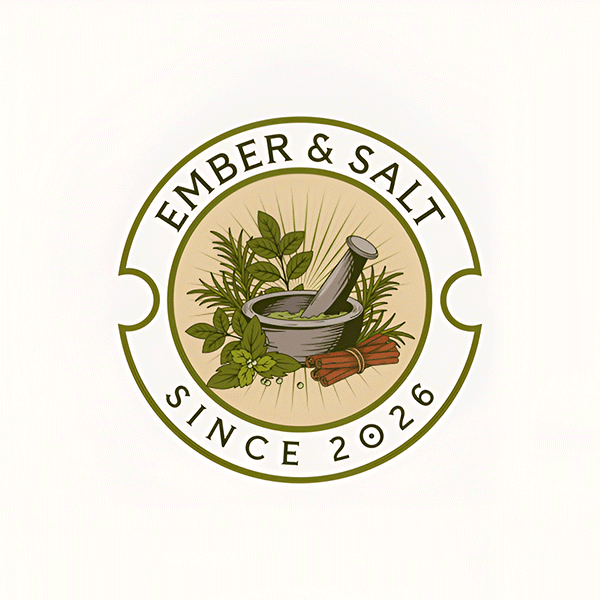
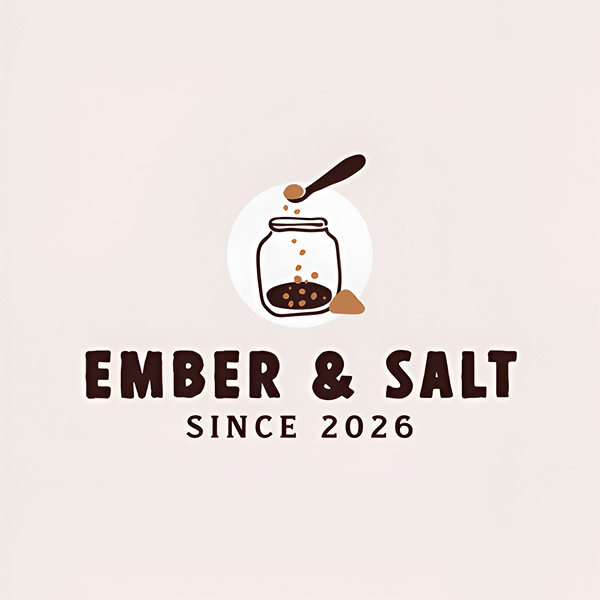
Because the underlying structure comes from real design work rather than generation alone, the icon and layout choices felt more intentional right out of the gate, before any editing even started.
Editing a design that was already designer-built
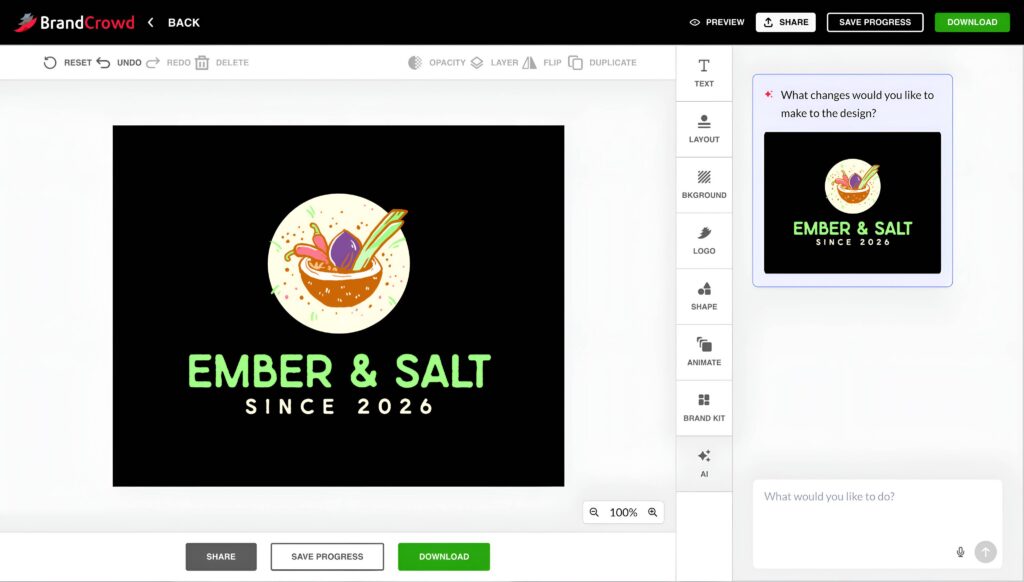
Because every BrandCrowd concept starts from a template a professional designer actually built, editing feels less like constructing a logo and more like refining one that already has good bones. That shows up in a few specific ways:
- AI chat editing, describing changes in plain language rather than hunting through menus
- Structural consistency during edits. Swapping an icon or resizing an element tends to hold the designer’s original balance and spacing, rather than needing manual correction to keep the layout looking intentional
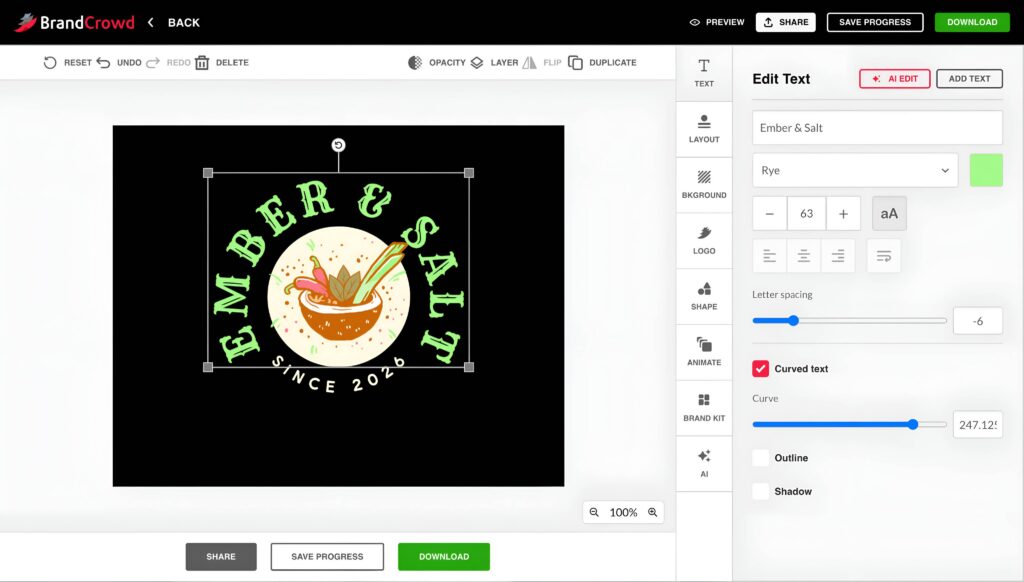
- Curved text worked too, letting the tagline bend cleanly around a circular badge version of the logo without distorting the letterforms
- Mockup previews on signage, apparel, and packaging before exporting anything, useful for seeing how a design translates outside the flat editor view
- Generate and save multiple design variations from a single prompt to compare side by side
That structural consistency was the most noticeable part in practice. Edits that might throw off spacing or alignment on a more freeform, AI-built layout tended to stay visually balanced here, likely a byproduct of starting from a template with real design logic baked in rather than generated from scratch.
Putting it to the edit challenge
Running the Ember & Salt brief through BrandCrowd, we used the AI chat editor and the manual buttons available on the platform’s editor, the same as we did for Design.com.
We opened with a request focused on replacing the purple onion in the icon with dried bay leaves:
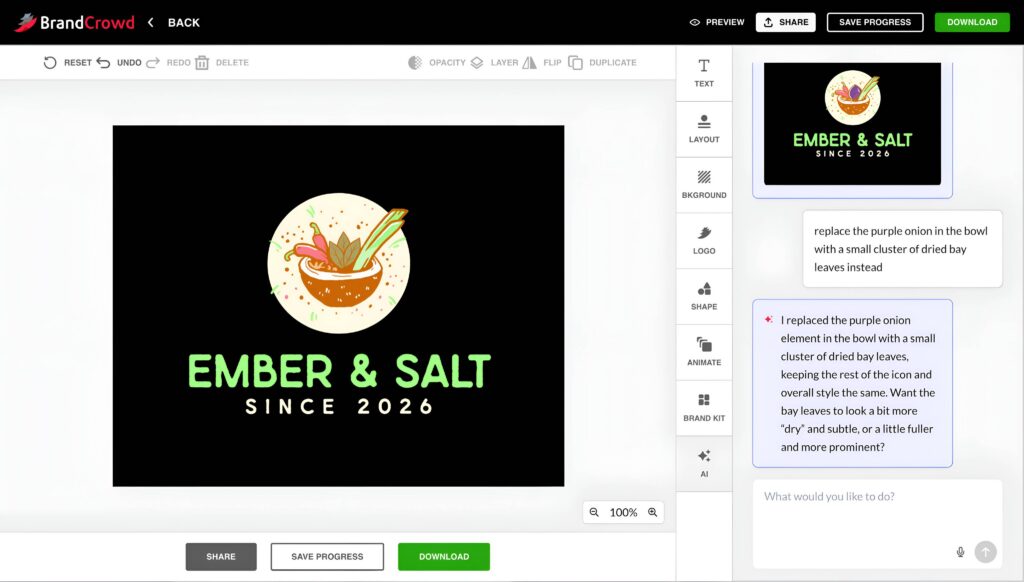
The swap came back holding the same circular composition, with the chili pepper, leek, and other vegetables in the bowl staying in place around the new addition. From there, we tested whether the AI could change the font into something more rustic:
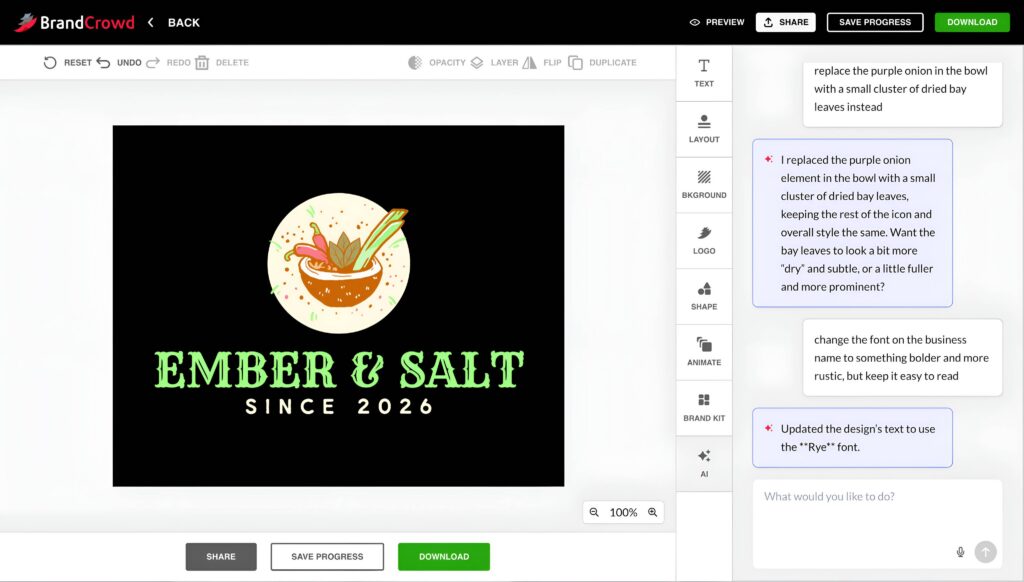
The AI selected a bolder, more textured typeface from BrandCrowd’s own font library, called “Rye,” landing on it immediately rather than needing a follow-up nudge.
Switching over to the manual editor, we adjusted the texts “Ember & Salt” and “Since 2026” around the bowl. Curving both lines took only a couple of toggle clicks. Here’s what it looked like after:
For the final adjustment, we stayed in the manual editor, using the color picker to change the business name from green to a warm burnt orange that matched the bowl.
Here’s the logo we ended up with after all the editing:
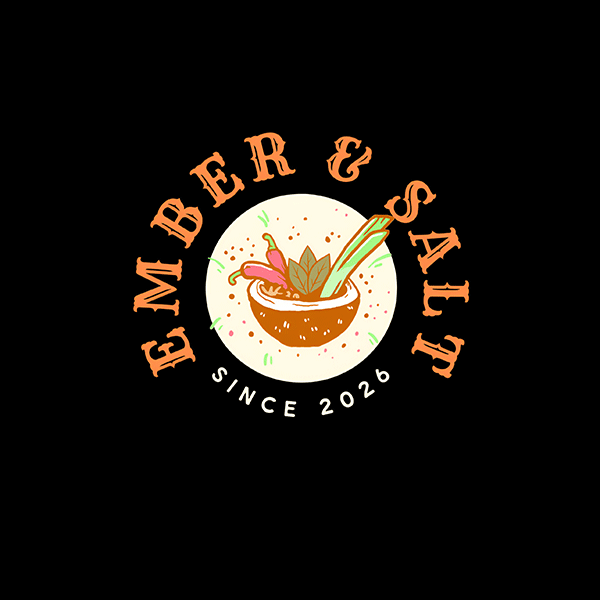
Exporting a vector file for the finished version was free too, with no watermark or upsell at any point in the process.
What this says about BrandCrowd’s editing
This session showed a platform that’s editable, but split cleanly along a line: the AI chat editor handled content and style changes, like swapping an icon or picking a new font, with real confidence, while anything involving positioning, like curving text or fine color placement, needed the manual toggles instead.
That’s not necessarily a weakness. It’s a different shape of editability than Design.com’s, one where AI and manual tools each own a clear lane rather than overlapping. For anyone comfortable switching between the two, BrandCrowd still ends up just as editable in practice, it just gets there through a more divided workflow rather than one tool doing everything.
3. Wixel (by Wix)
Wixel is Wix’s AI design platform, built around Aria, an AI design agent you work with in conversation to generate and refine a logo, rather than just picking from a static set of templates.
Running the Ember & Salt brief through it started with a short back-and-forth with Aria about the business and its industry before four AI logos were generated.
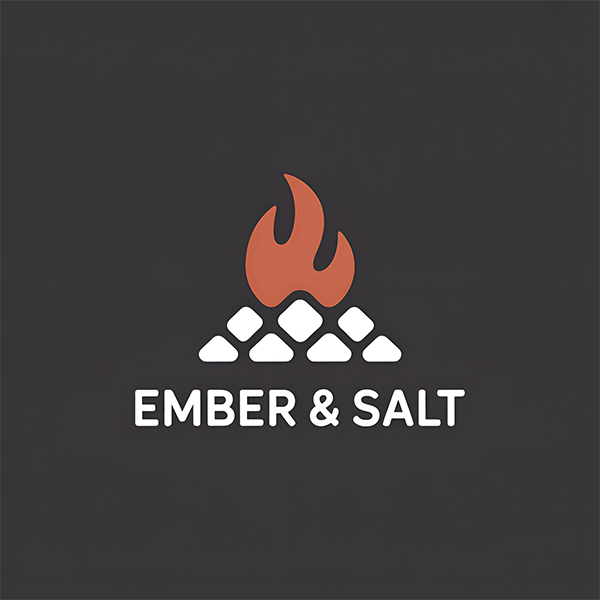
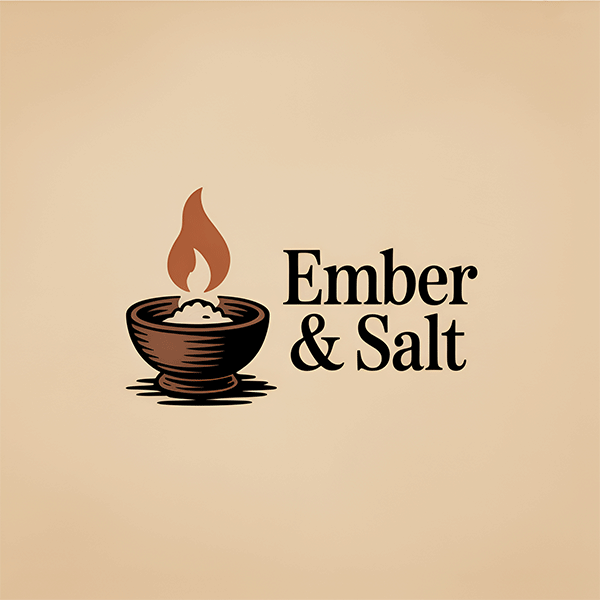
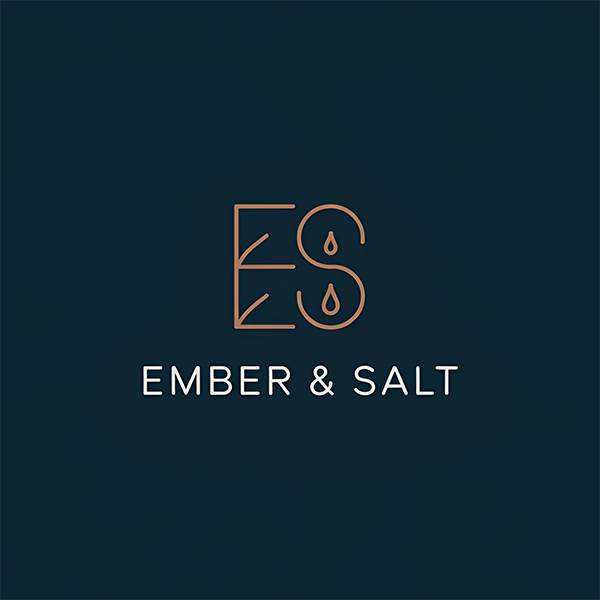
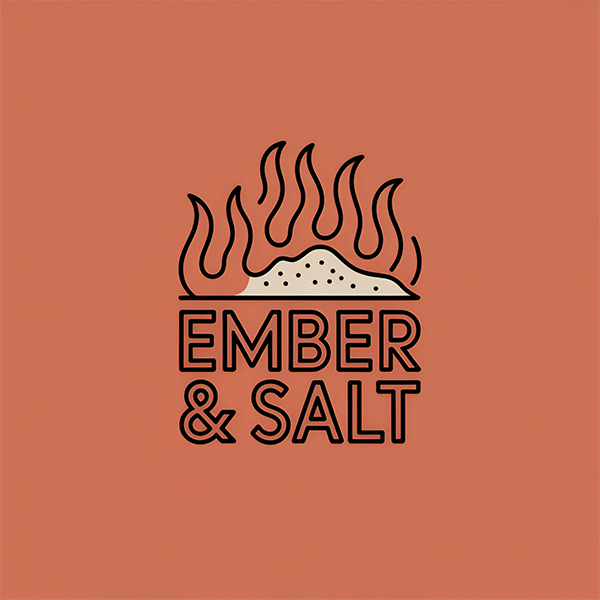
From there, a full editor opens, covering colors, fonts, layout, shapes, and background, all of which are usable for free before any payment is required.
Where Wixel pulls ahead: A conversational agent tied to a live website
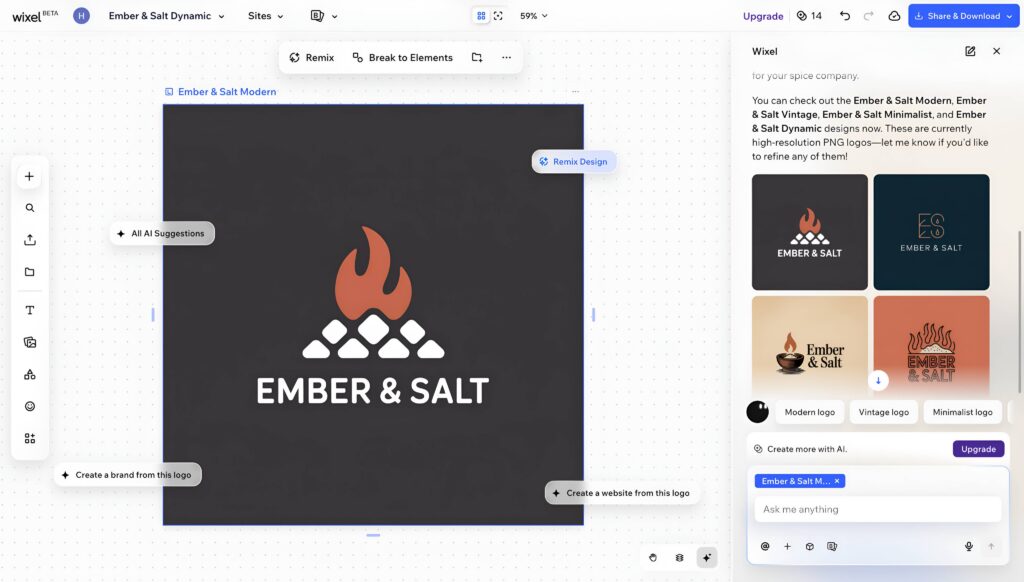
What sets Wixel apart isn’t the editor alone, it’s Aria acting as an ongoing design partner, plus the fact that the logo isn’t really a standalone asset here:
- Refine the logo by chatting directly with Aria, describing changes in plain language rather than only using manual controls
- An AI Breakdown panel that lets you work on individual parts of the logo, like the icon or typography, separately, rather than adjusting the whole design at once
- Mockup previews on both colored and transparent backgrounds
- A finished logo connects directly into Wix’s website builder and business card tools, without exporting and re-uploading anything
The tradeoff is that AI-assisted edits through Aria draw from a monthly credit allowance, while manual adjustments to layout, color, and typography remain free and unlimited.
Putting it to the edit challenge
Running the Ember & Salt brief through the edit challenge, the icon swap and layout reflow both worked cleanly, and manually repositioning shapes held up without breaking the surrounding text.
The challenge was in export. A high-resolution PNG or JPG requires a paid Wixel plan, and vector formats sit behind a higher tier still, so a fully edited logo isn’t usable anywhere outside the platform until one of those is purchased.
4. Canva
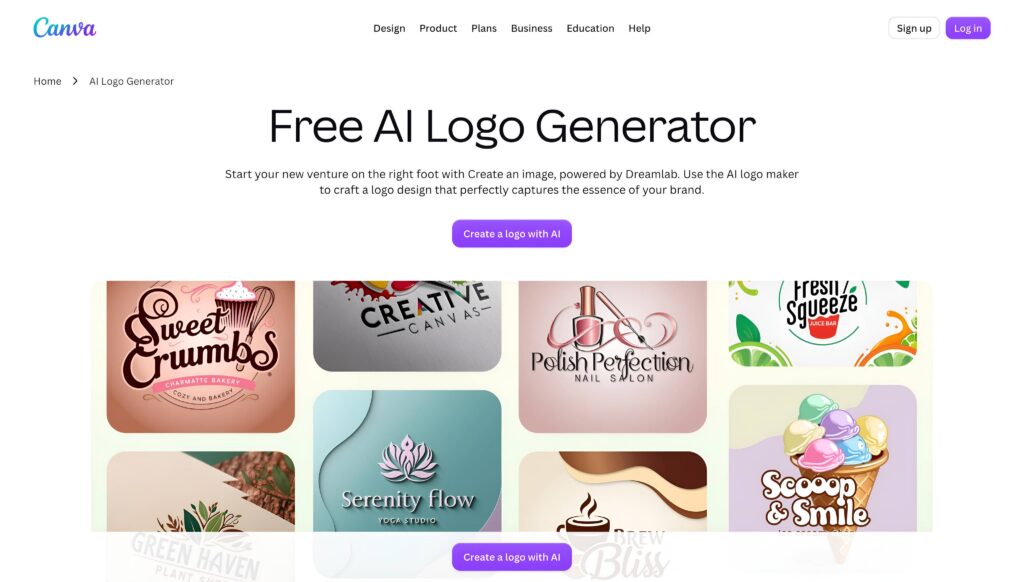
Canva isn’t built as a dedicated logo tool. It’s a general design platform where the logo maker is one small piece of a much larger suite. That distinction shapes the entire experience, starting from generation through to export.
Entering the Ember & Salt business name into Canva’s logo generator gave four logo suggestions:
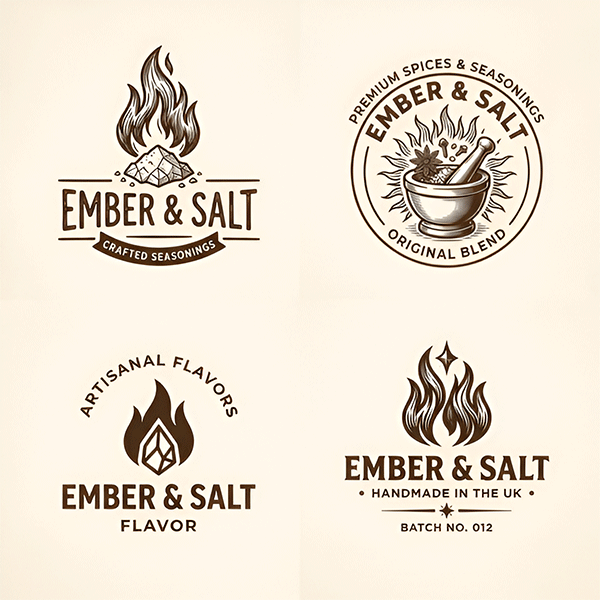
The results looked clean, but felt closer to a design template being adapted to a logo than to a tool built specifically for logo generation.
Where Canva pulls ahead: Everything beyond the logo itself
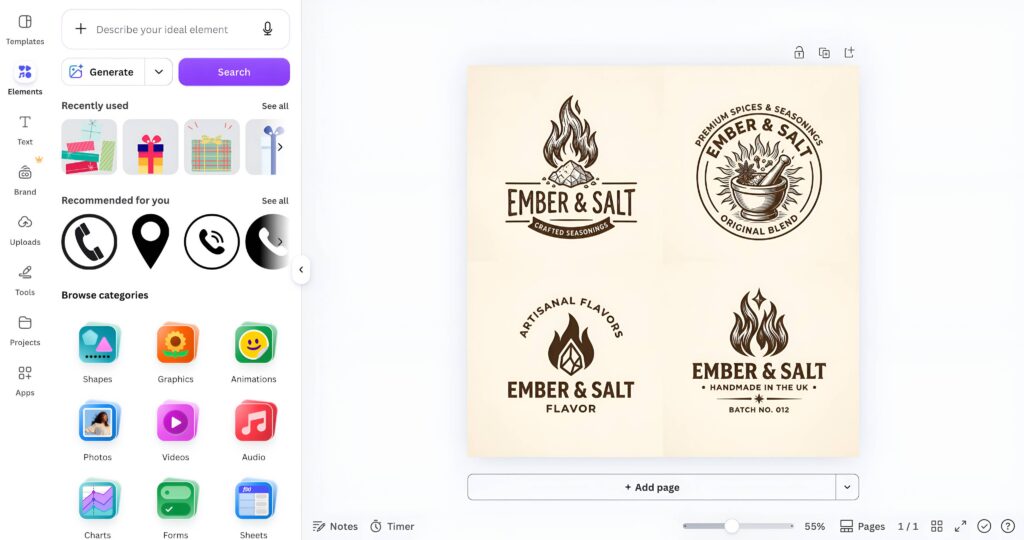
Canva’s real strength isn’t logo editing. It’s what the same account unlocks once the logo exists:
- The same brand colors and fonts can be reused instantly across thousands of templates for social posts, presentations, and marketing materials
- One familiar editor covers the logo and every other piece of branded content a business might need afterward
- No separate learning curve between designing the logo and designing everything that uses it
That tradeoff is worth being upfront about: logo-specific controls like curved text or independent path editing simply aren’t part of Canva’s toolset, since it wasn’t built around that use case.
Putting it to the edit challenge
Running the Ember & Salt brief through the edit challenge, the icon swap worked, but less cleanly than it does in the dedicated logo tools. Removing the original icon and dropping in a replacement occasionally left spacing off-balance, needing a manual nudge to recenter.
Vector export requires upgrading to Canva Pro, so the free tier doesn’t support resizing files without quality loss.
5. Fiverr
Fiverr’s AI logo maker works differently from every other tool on this list at the source: instead of generating logos from scratch, it remixes a library of over 30,000 logos created by the platform’s own designers. The AI’s job is to adapt real design work to a specific business, not invent a concept from nothing.
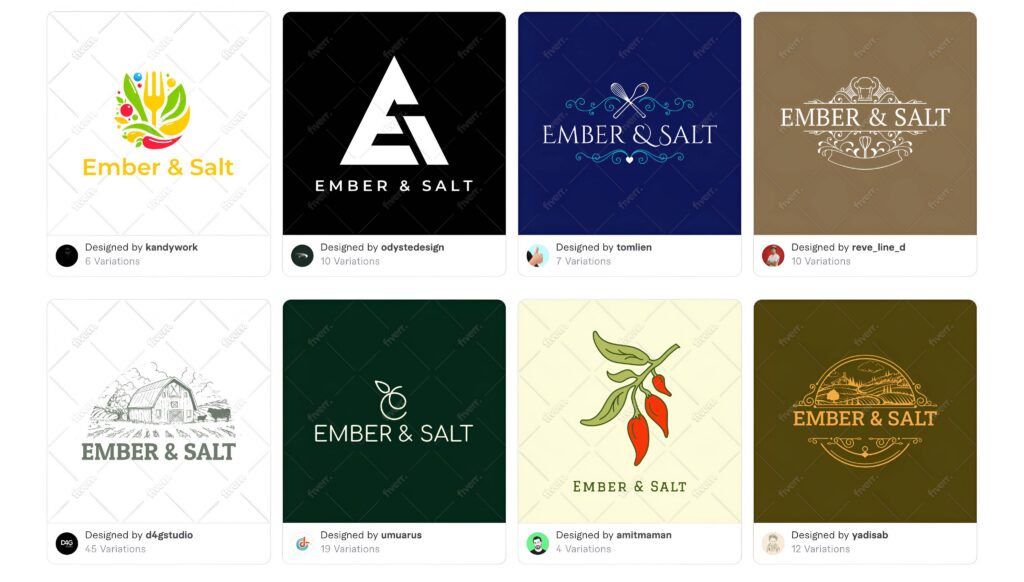
Entering the Ember & Salt business name surfaced concepts with icon choices that leaned into more specific, less generic spice and pantry imagery than the fully AI-generated tools produced.
Here are just some of them:
Where Fiverr pulls ahead: A human design foundation
Fiverr’s advantage isn’t speed or automation, it’s the starting material itself. Every concept traces back to an actual designer’s original logo, not a purely generative guess. A built-in editor like the one below allows free adjustment of colors, fonts, layout, shapes, and backgrounds before any purchase.
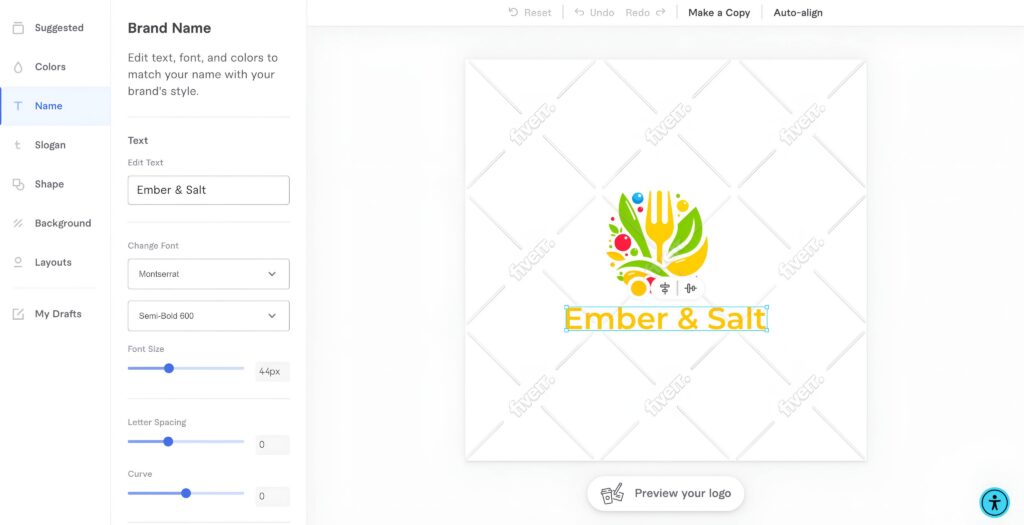
The editing tools themselves are more manual than an AI-assisted editor, closer to a lightweight design tool than to Design.com’s chat-based editing. If the self-editing isn’t enough, the original designer behind a concept can be hired directly to refine it further.
Putting it to the edit challenge
Running the Ember & Salt brief through the edit challenge, icon swaps, and layout changes both required more hands-on adjustments than AI-native tools, which meant browsing a separate shape library and manually repositioning elements, rather than the layout adapting on its own.
Vector export and other advanced formatting sit behind paid packages starting at $30, so nothing from the free editing stage leaves the platform without a purchase.
6. Shopify Logo Maker
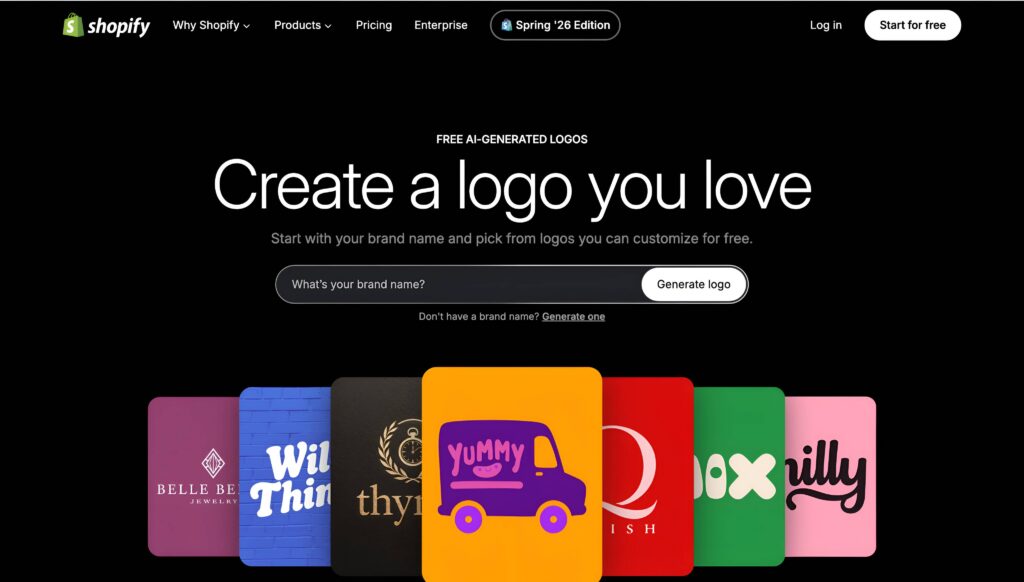
Shopify’s Logo Maker is built for speed and simplicity above all else, a free tool meant to get a new Shopify store a usable logo fast, not a platform built around ongoing editing.
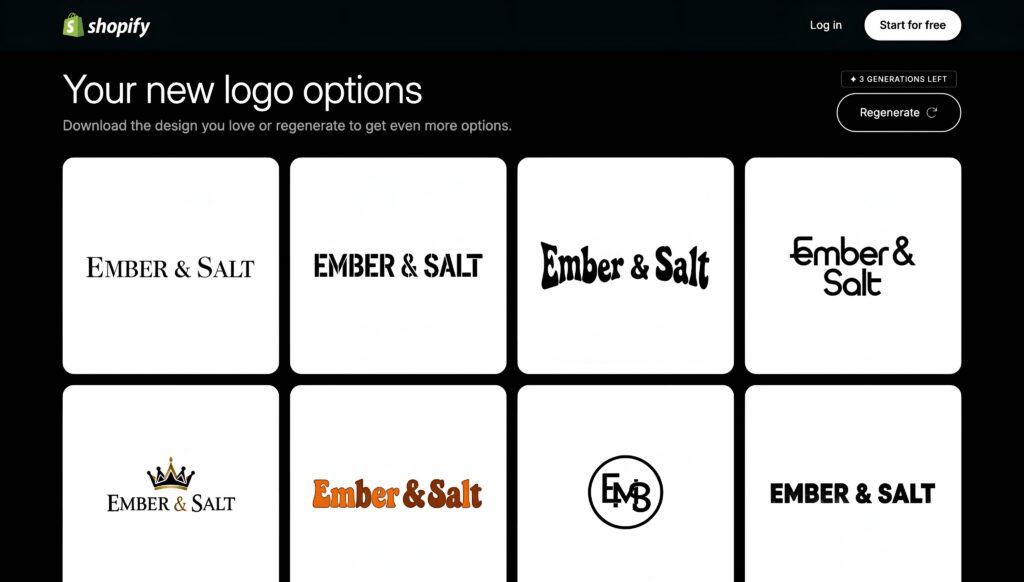
Entering the Ember & Salt business name returned a batch of AI-generated suggestions instantly, with no industry filter or keyword input beyond the name itself. In fact, the logo suggestions are just simple wordmarks in different fonts, just like the logos below:
Where Shopify’s approach falls short: No manual editing path
Shopify’s logo customization is handled entirely through text prompts rather than a visual editor.
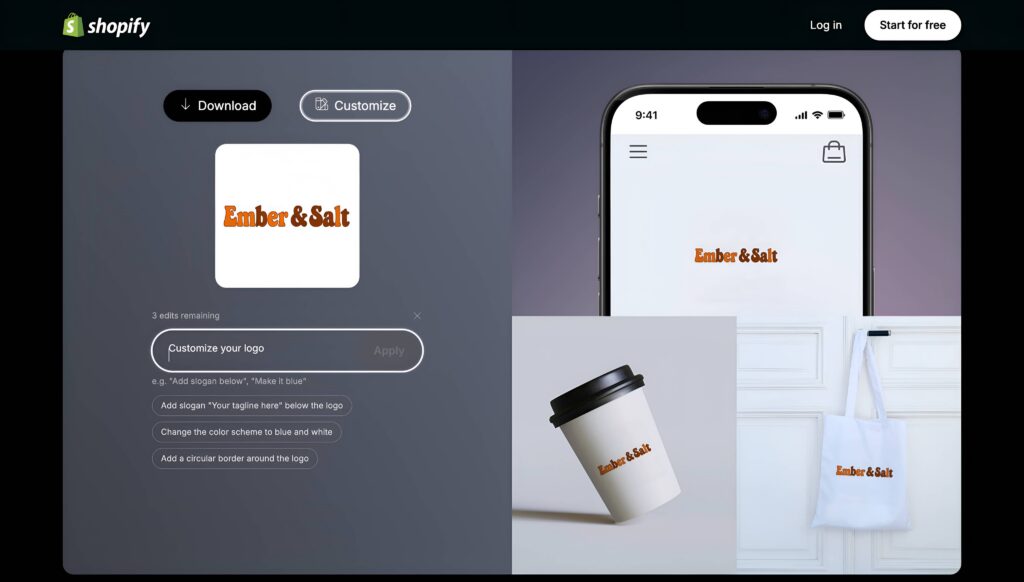
There’s no traditional editor to speak of, which means:
- No way to swap a single icon or element without prompting for a full regeneration
- No manual control over layout, spacing, or typography
- Only three free regenerations before you’re left choosing from whatever has already been generated
For a business that needs a placeholder logo immediately and doesn’t plan to touch it again, that simplicity might be enough. For anything requiring ongoing changes, there’s no real editing path to speak of.
Putting it to the edit challenge
Running the Ember & Salt brief through the edit challenge confirmed the limits fast. Asking the tool to swap only the icon while keeping everything else the same instead returned a different logo altogether, since prompt-based regeneration doesn’t isolate individual elements.
With the regeneration limit reached quickly, the edit challenge wasn’t really done on this tool the way it was on the others.
When editable templates aren’t actually worth paying for
Not every business needs deep editing control, and it’s worth being honest about that before assuming that more control automatically makes for a better choice.
Deep editing is worth paying for if:
- You expect to launch more than one product, service, or location under the same brand
- Seasonal or promotional versions of the logo are likely down the line
- The brand is still being refined, and the “final” logo might not be final for a while
- The logo needs to scale across formats that don’t behave the same, like packaging, signage, and a small app icon
A simpler, more locked-down tool is probably enough if:
- You need one clean logo and don’t expect to touch it again
- The business is small-scale or short-term, without multiple branded touchpoints to keep consistent
- Budget and speed matter more than long-term flexibility
The tradeoff only becomes a real problem later. If a rebrand, a resize, or a small fix comes up and there’s no way to make it without starting from zero, that’s the moment a locked-down tool stops being a good deal.
Final take
AI logo generators are tested the moment you actually try to use them past the initial generation. The gap between a tool that creates a nice-looking logo and one that lets you keep shaping it doesn’t show up in that first result. It shows up in the tenth edit, when you need to swap an icon, reflow a layout, or export a file that finally looks right.
Design.com is the strongest option for anyone who expects to keep adjusting their logo after the first draft. That same depth extends past the logo itself. The same account includes tools for business cards, flyers, posters, social media posts, email signatures, and a full website, all automatically pulling from the same brand, so the logo becomes the starting point for a full brand kit rather than a standalone file.
BrandCrowd is a strong alternative for the same kind of deep, ongoing editing, built around a library of designer-made templates. It’s worth a look for anyone who wants that same editing depth with a head start from existing design work.
Whichever tool ends up being the right fit, the real test isn’t the first logo it generates. It’s whether that logo can still keep up with the business a year from now.
FAQs on editing AI logos
Why did my AI-generated logo look fine but fall apart when I tried to edit it?
Some tools generate a flattened image rather than a layered, editable file. If a platform doesn’t separate the icon, text, and background into individually adjustable pieces, there’s often nothing left to edit beyond color and font swaps. This is worth checking when using an AI image generator, especially if you plan to customize the resulting visual afterward.
Is it normal for vector export to cost extra, even on a “free” logo maker?
Yes, this is common. Many tools let you design and even fully customize a logo for free, then charge specifically for the vector or high-resolution file needed for printing or scaling. Design.com is one of the few that offer free vector export at every stage of the editing process, with no watermark or upsell.
What’s the fastest way to check whether a tool’s edits are real before committing?
Try swapping a single icon without changing anything else, and see whether the layout adjusts on its own or breaks. That one test tends to reveal more about a tool’s editing depth than anything in its marketing.
What does it mean if a logo tool has an “AI chat” for editing?
It means changes can be described in plain language rather than only by clicking through menus. Design.com and BrandCrowd’s AI chat-based editing work this way, letting you ask for a specific adjustment rather than manually hunting for the right tool.
Why do some tools let me fully edit a logo for free, but then charge me just to download it?
This is a common structure, especially on tools like Wixel, where manual editing stays free but exporting a usable file requires a paid plan. It’s worth checking a tool’s export policy before investing time in customizing a logo there.
Can I switch logo tools partway through if the editing doesn’t hold up?
Yes, but it usually means starting over, since most platforms don’t import a design file from a competitor. This is part of why testing a tool’s editing depth early, before getting attached to a specific concept, matters more than picking based on the first generated result alone.
Read more on design here:
- AI Logo Design vs Traditional Logo Design: Which Is Better for Your Brand?
- How to Choose the Right Logo Font
- Best Business Card Makers in 2026
Hannah Suroy suroy brings clarity to complex topics across entertainment, business, and creative industries. She specializes in translating industry trends and innovations into engaging content that helps readers understand the creative process behind the work they love.