How to Design a Business Card
Do business cards still matter in a world of LinkedIn profiles, QR codes, and digital networking?
Absolutely! A business card is often one of the first things people see when they meet your brand. Whether you’re networking, meeting clients, or promoting your business, a well-designed card helps you make a professional first impression and keeps your contact information readily available.
The good news is that creating a great business card doesn’t require design experience. In this guide, we’ll show you how to design a business card that looks professional, clearly communicates your brand, and is ready for both print and digital use.
Let’s get started!
What makes a good business card?
A good business card is clear, professional, and easy to read. It should communicate your brand, include essential contact information, and use a clean layout that makes a strong first impression without overwhelming the reader.
It communicates the right information, reflects the brand’s identity, and remains easy to read at a glance.
Think of your business card as an extension of your brand. The colors, typography, logo, and overall layout should match the rest of your marketing materials. Consistency helps build trust and makes your business look more professional.
The key elements of a great business card
| Element | Why It Matters |
| Clear branding | Makes your business instantly recognizable through your logo, colors, and typography. |
| Readable typography | Ensures your contact information is easy to read at a glance. |
| Essential contact details | Gives people the information they need to contact you quickly. |
| Clean layout | Keeps the design organized and prevents important details from getting lost. |
| High-quality printing | Creates a professional impression and improves durability. |
Why business cards still matter
Even with smartphones and digital networking, business cards continue to play an important role. They’re quick to exchange, don’t require an internet connection, and give potential customers something they can keep long after a meeting or event.
They’re also an opportunity to reinforce your brand. A thoughtfully designed card can communicate professionalism, attention to detail, and credibility before you’ve even started the conversation.
What should you put on a business card?
Every business card should include your name, business or company name, job title, phone number, email address, and website. Depending on your business, you can also add a QR code, social media handles, physical address, or a short tagline.
A clean, uncluttered business card design is much more effective than one filled with unnecessary details.
Essential information
These are the details every professional business card should include:
- Your name
- Job title or profession
- Business or company name
- Phone number
- Professional email address
- Website
- Company logo
Optional information
Depending on your industry, you may also want to include:
- QR code linking to your website, portfolio, or digital business card
- Social media handles (such as LinkedIn or Instagram)
- Physical business address
- Appointment booking link
- Short business tagline or slogan
Pro Tip: Before adding something to your business card, ask yourself: “Will this help someone contact me or better understand my business?” If the answer is no, it’s probably best to leave it off. A clean, easy-to-read business card almost always makes a stronger impression than one that’s overcrowded.
How to design a business card in 6 simple steps
Creating a business card doesn’t have to be complicated. Whether you’re designing one from scratch or using a business card maker, following these six steps will help you create a card that’s both attractive and functional.
1. Start with your brand
Before choosing colors or layouts, think about the image you want your business to project. Your business card should feel like an extension of your brand, so use the same logo and fonts, and check the color wheel to choose the right colors across all your marketing materials.
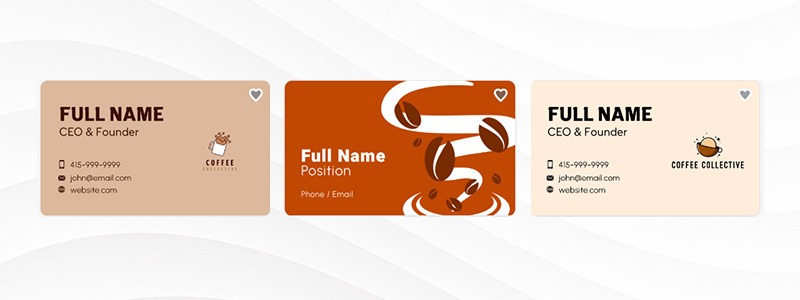
For example: A law firm may choose a clean, minimalist design with navy and gray tones;
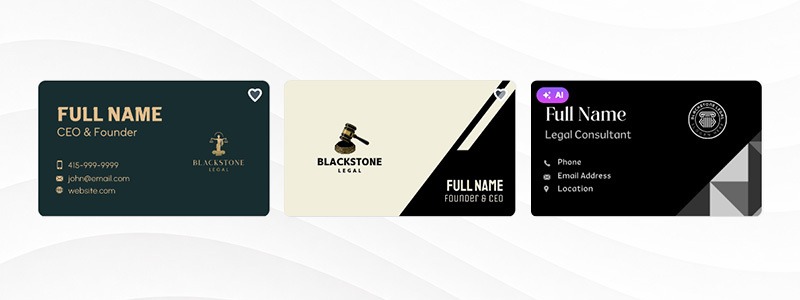
while a coffee shop might use warmer colors and more playful typography.
2. Choose a clean layout
A business card should be easy to scan in just a few seconds. Organize your information with clear spacing and avoid filling every inch of the card.
| Layout | Best For |
| Centered | Personal brands, freelancers, creatives |
| Left-aligned | Corporate businesses and professional services |
| Minimalist | Modern brands, startups, and technology companies |
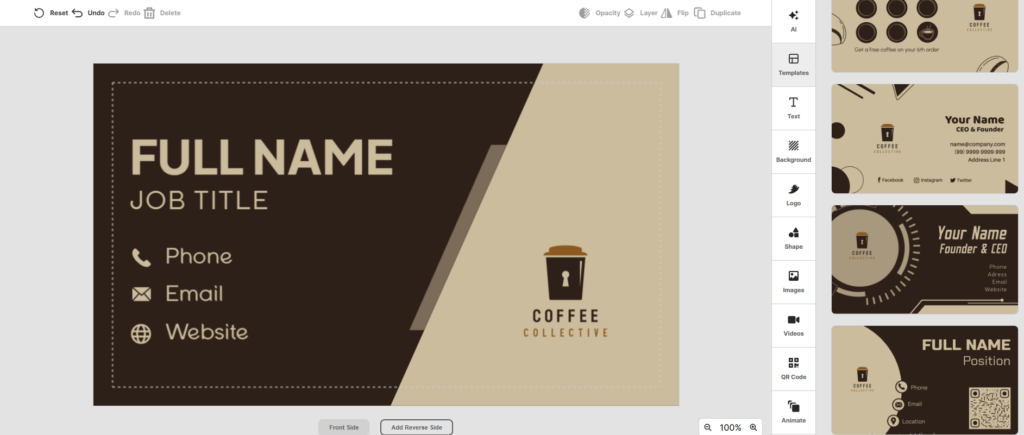
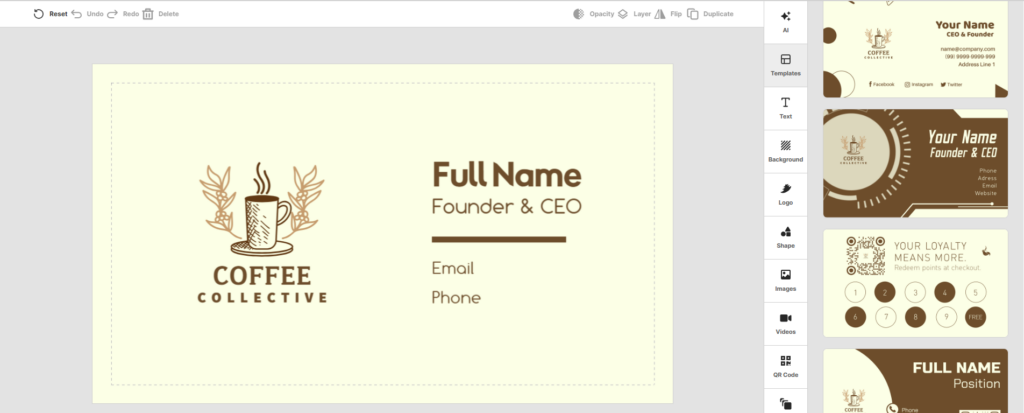
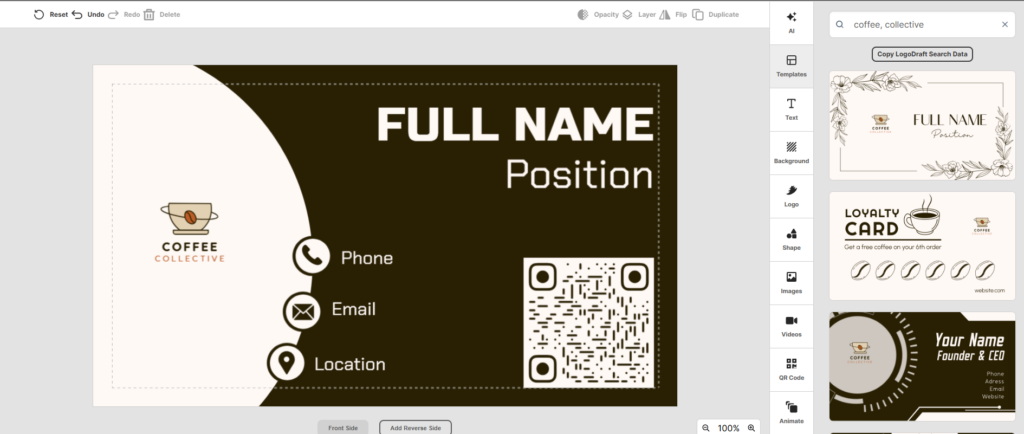
If you’re not sure where to start, using a business card maker can make the process much easier. For example, Design.com’s Business Card Maker offers professionally designed templates for various industries and styles.
See examples below:
3. Pick readable fonts and brand colors
When it comes to business cards, simple is usually better. Choose fonts that are easy to read and stick to one or two font styles. Pair them with colors that have enough contrast so your name and contact details are easy to see at a glance.
Your business card should also feel like part of your brand. Using the same colors, fonts, and logo across your website and social media helps create a more consistent, professional look.
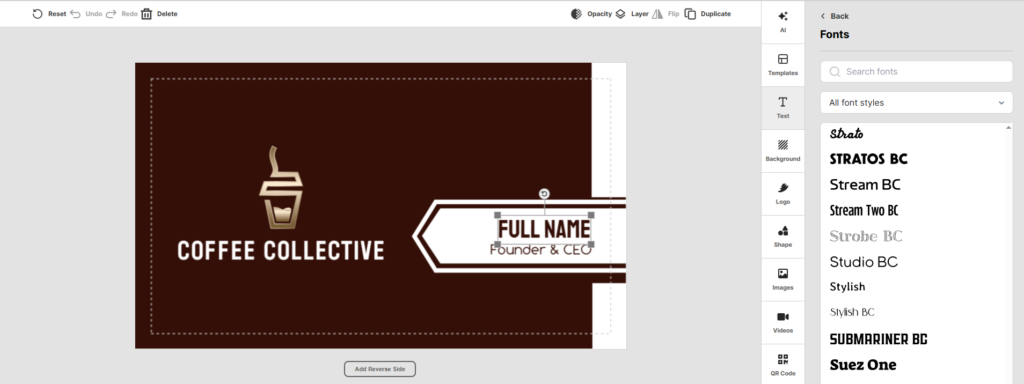
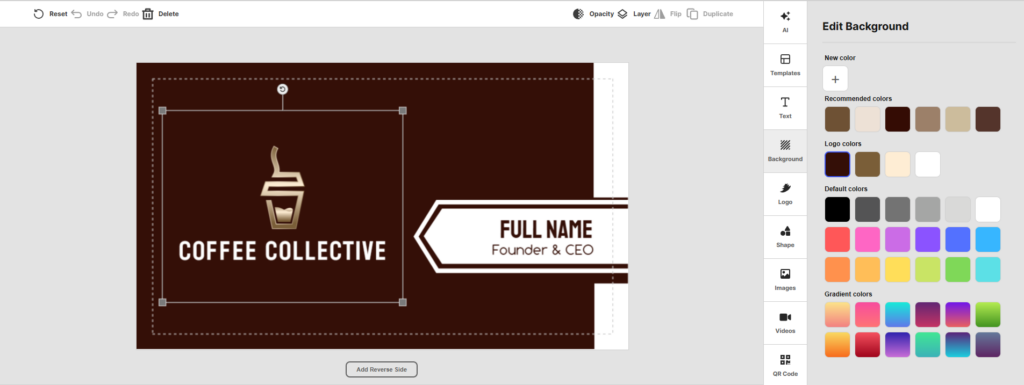
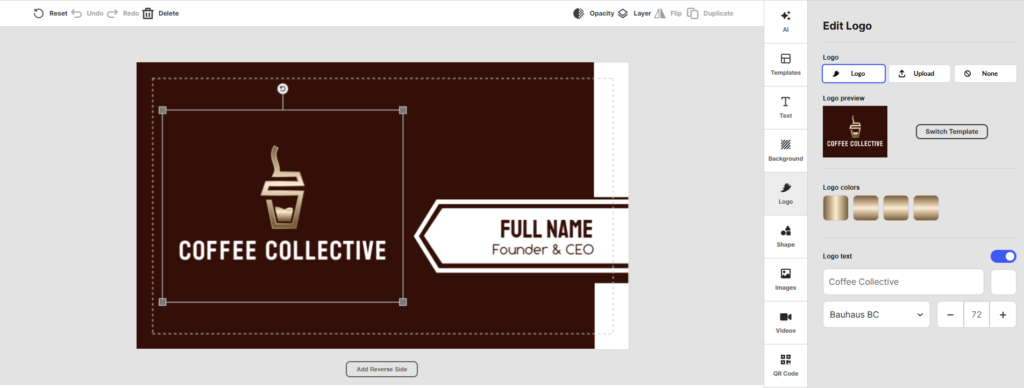
If you’re using Design.com’s Business Card Maker, you can easily customize the:
Fonts
Colors
Logo
Templates
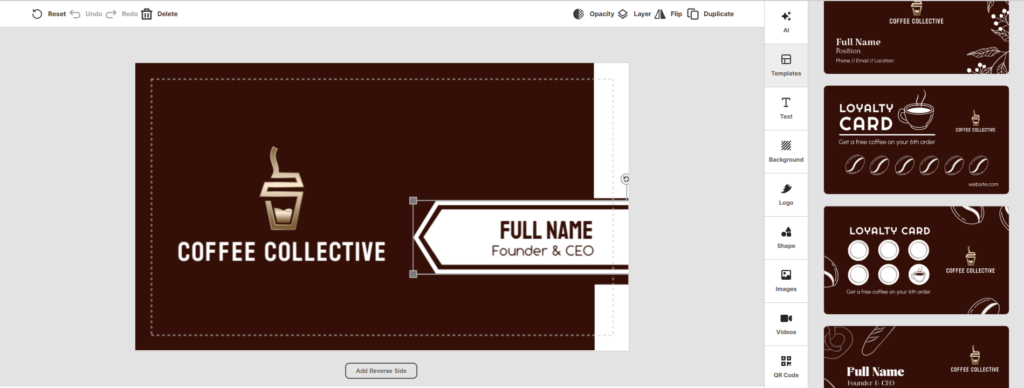
to match your brand, so everything looks polished and works together seamlessly.
4. Add your logo and contact information
Your logo design should be one of the first things people notice, but it shouldn’t overpower the rest of the card’s layout. Include only the contact details people actually need, such as your name, job title, phone number, email address, and website.
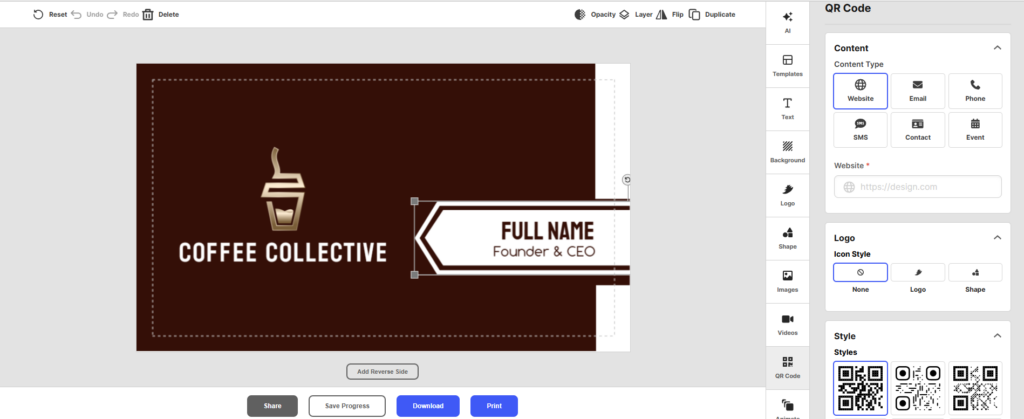
If it supports your business, consider adding a QR code that links to your website, portfolio, or digital contact card.
5. Leave plenty of white space
One of the biggest mistakes people make is trying to fit too much onto a business card. Empty space isn’t wasted space—a white space is what makes your content easier to read and gives your design a more polished, professional appearance.
When in doubt, simplify.
6. Review before you print
Before finishing your design, take a few minutes to double-check every detail. Here’s a final business card checklist you can follow:
✓ Spelling and grammar are correct
✓ Contact information is up to date
✓ Logo is high resolution
✓ Fonts are readable
✓ Colors match your brand
✓ QR code works correctly
✓ Information isn’t crowded
✓ Design has been proofread by someone else
A quick review can save you from printing hundreds of business cards with a mistake that’s expensive to fix later.
Print vs. digital business cards
Printed business cards are ideal for face-to-face networking and leave a lasting physical impression, while digital business cards make it easy to share your contact details online. Many professionals use both to get the best of both worlds.
Rather than choosing one over the other, consider using both. A printed business card creates a memorable first impression, while a digital version makes it easy for people to save your contact details with a single scan.
| Feature | Printed Business Card | Digital Business Card |
| Best for | Networking events, meetings | Online networking and virtual meetings |
| Sharing | Handed out in person | QR code, link, email, or messaging apps |
| Internet required | No | Usually yes |
| Easy to update | No | Yes |
| Memorable | High | Medium |
| Includes QR code | Yes | Built in |
Tip: Adding a QR code to your printed business card is a simple way to connect the two. It can direct people to your website, portfolio, LinkedIn profile, or a digital contact card without taking up extra space.
Business card printing explained
Before printing your business card, make sure your design uses high-resolution graphics, includes bleed and safe margins, and is saved in a print-ready file format. Choosing the right paper and finish will also improve the final result. Knowing a few basic terms can help you avoid common mistakes.
Here are a few basic terms:
- Bleed: Extra design space around the edges that’s trimmed after printing to prevent unwanted white borders.
- Safe margin: The area inside the card where important text and logos should stay to avoid being cut off.
- Resolution: Use at least 300 DPI to ensure sharp, professional-quality printing.
- CMYK: The standard color mode for printing, producing more accurate printed colors than RGB.
- Paper Finish: Matte offers a clean, professional look, while gloss creates brighter colors and a shinier finish.
If you’re using a business card maker like Design.com, many of these print settings are already built into the templates. That means you can focus on creating your design without worrying about technical setup, helping ensure your business cards are ready for professional printing.
Conclusion
A great business card does more than share your contact details—it represents your brand and helps you make a memorable first impression. By keeping your design clean, consistent, and easy to read, you’ll create a business card that people are more likely to keep and remember.
Whether you’re creating your first business card or refreshing an existing one, Design.com’s Business Card Maker makes it easy to design professional, print-ready business cards in minutes. Start creating your business card today and leave a lasting impression wherever you network.
Read more blogs here:
- Best Business Card Makers in 2026
- What Is a Business Card?
- The Best Logo Generator for Every Business Type: A Complete Comparison
Shayne Jain is a content writer with 7 years of experience, specializing in creating engaging, impactful content. Her passion for writing began at age 8, when she started crafting short stories and songs. You can find her kicking balls on the football field or immersed in a good video game when she’s not writing.