What are the Common Logo File Formats?
Once a logo is ready to use, the next question that mostly comes up is what file format the logo should be downloaded in. This is the last step of the logo design process. Some logo design platforms offer multiple formats.
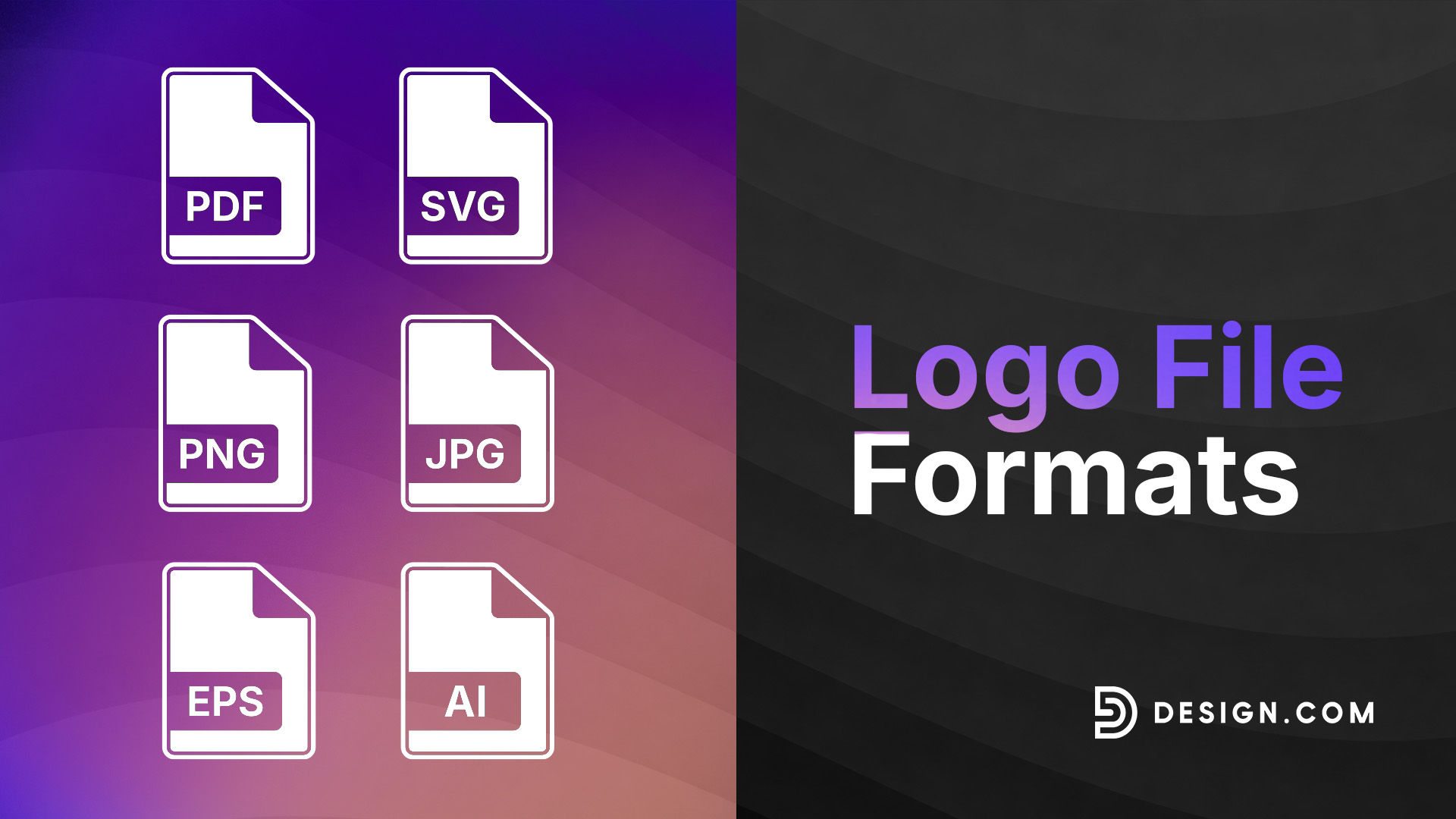
The common logo file formats include SVG, EPS, PDF, PNG, and JPG. These formats aren’t interchangeable. They serve different purposes.
This guide covers all major logo file types in plain language — what they are, when to use them, and when not to — to remove confusion. By the end, choosing the best logo file format will be second nature.
Why logo file formats matter
You may wonder how a file format can make a difference. Well, using the wrong one can end with a blurry print job, a logo with a solid white background when it should be transparent, or a file a printer can’t open.
- File format affects quality
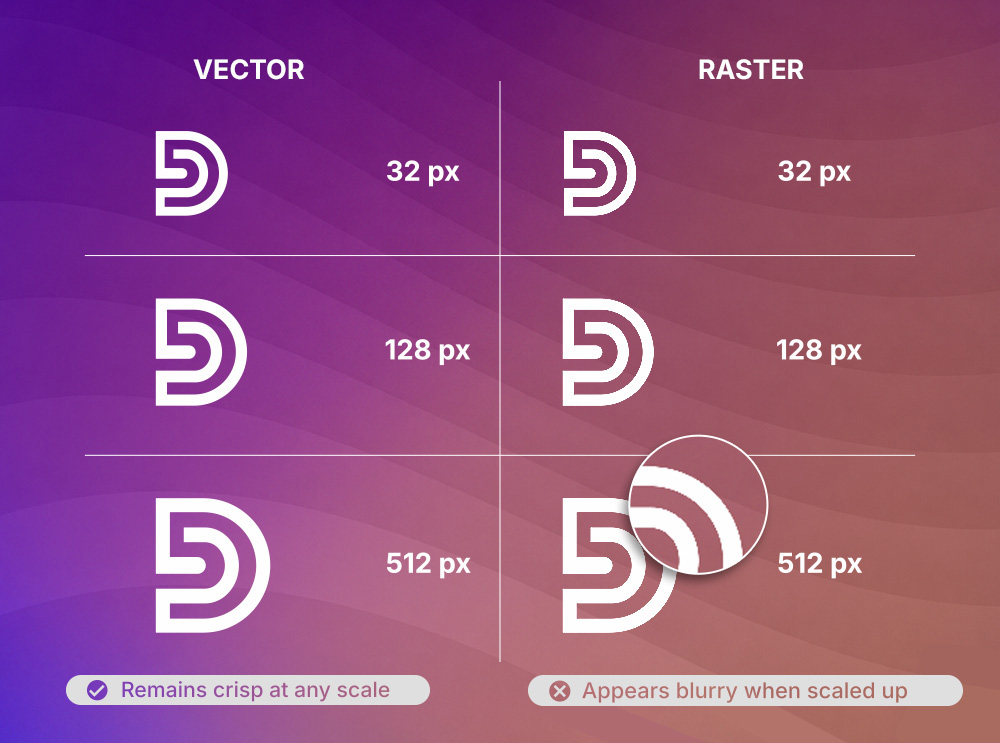
A logo exported correctly is sharp, professional, and clean. A logo exported in the wrong format or stretched from a low-resolution raster can appear blurry or pixelated.
The format you choose determines how much quality is retained every time your logo gets resized, reproduced, or shared.
- Format affects scalability
A PNG that looks perfect on your website might fall apart if it’s printed at 6 feet wide. The right format scales infinitely without quality loss.
- Format affects usability across platforms
Each platform — whether it’s a website, social media platform, printed ads, promotional merchandise, or production package — has different technical requirements. A format that’s perfect on your social media won’t look good on a printed banner.
When your logo looks crisp at all times, it builds trust. A blurry logo on flyers or banners chips away at your brand’s credibility.
Vector vs. raster
Logo file formats typically fall into one of two categories:
- Raster logo files (PNG, JPG)
Unlike a vector logo file, a raster logo file is made up of pixels. While they look great at the size they were originally designed for, they can go blurry if you stretch them too far.
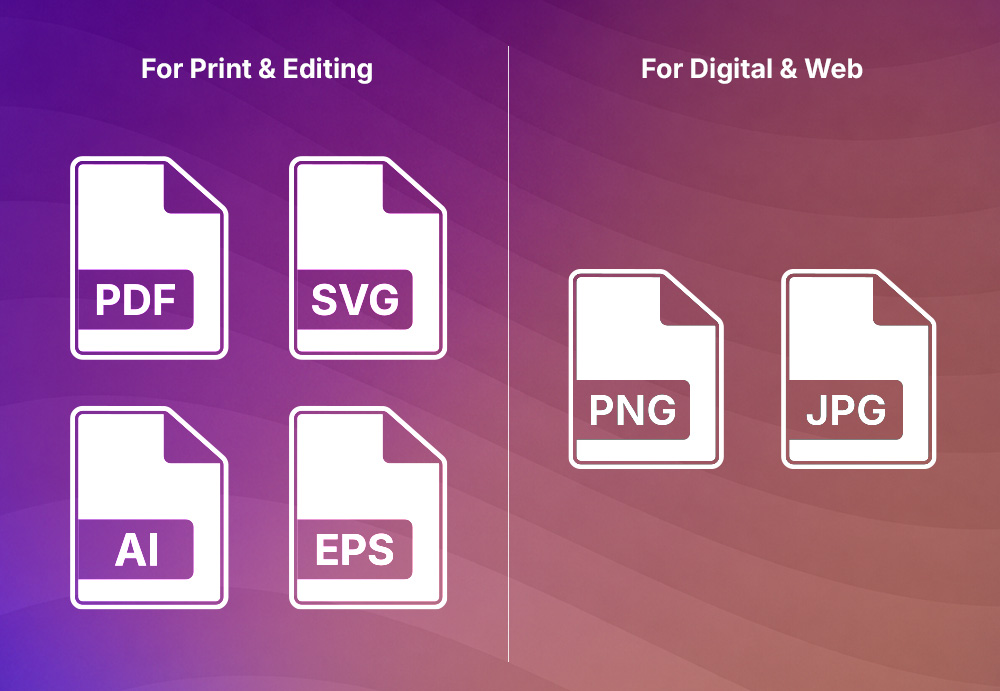
It’s why they’re best used for digital purposes, such as on websites and social media platforms (Facebook, Instagram, YouTube, TikTok, etc).
- Vector logo files (SVG, EPS, PDF)
Instead of pixels, a vector logo file is built from mathematical paths. It can be resized in any way without losing quality, which is why they’re perfect for printing small branded assets, from pocket-sized business cards to huge ads like billboards.
Common logo file formats: What each one is for
PNG logo: The go-to digital logo file
For logos, PNG (Portable Network Graphics) is the most used format. It’s the file format that supports transparent backgrounds .
You’ll need this version if you need to place your logo on any color but don’t want a white box around it. However, as PNG files are raster files, they’re suitable for large-scale printing.
Best for:
- Websites
- Social media accounts
- Email signatures
- Presentations
- Digital business cards
- Link in bio pages
JPEG logo: The compressed image format
JPEG/JPG (Joint Photographic Experts Group) is probably the most common raster file format online. However, it doesn’t mean it’s the best choice for logos. JPEG doesn’t support transparency.
In addition, its quality degrades every time you save it. This is because JPG uses compression, designed to create smaller file sizes. Still, it has its uses.
Best for:
- If smaller file sizes are a priority
- Transparent backgrounds are not needed
- Embedding logos in a photo-heavy webpage
SVG logo: The smart web vector format
SVG (Scalable Vector Graphics) is a vector image format that’s directly supported by all modern web browsers.
They load the fastest and maintain their sharpness regardless of screen size and resolution. You can embed SVG files in the website’s code. Web developers and designers prefer to work with this format because of its versatility.
Best for:
- Websites
- Web apps
EPS logo: The print industry standard
EPS (Encapsulated PostScript) has been the go-to file format for printers. Commercial printers will likely ask for the EPS file of your logo or design if you’re ordering business cards, flyers, posters, or letterheads.
The only downside is that you’ll need Adobe Illustrator or CorelDRAW to access it. But since you’ll only need to give it to your printer, you can just save it.
Best for:
- Large-format printing (banners, signage, billboards)
- Merchandise and promotional products (t-shirts)
- Embroidery and screen printing vendors
- Any professional print production environment
PDF logo: The shareable vector
Among all vector logo files, PDF versions are the most accessible. It retains the same scalability as EPS, so it looks sharp at any zoom level.
But you won’t need specific software to open it. You can access it using a free reader or your web browser. This means you can also easily share it with anyone without worrying whether they can view it on their end or not.
Best uses:
- If EPS files or EPS-compatible software aren’t available
- For reviewing and approving images
- Online invoices, menus, or postcards
AI logo file: The editable source
AI is the original, editable source file. It saves your logo while keeping all the design elements — text, shapes, and colors — separate, ready to be adjusted when needed.
However, you’ll need Adobe Illustrator to access it. It’s not something you’ll need to open often since the vector files can now cover what AI files are used for.
Best for:
- Sharing with a designer for advanced editing
- Saving as your master archive file
Common mistakes to avoid
Even with a better understanding of the different file formats, mix-ups can still happen during this step of the logo design process. So, here are the most common mistakes when it comes to these file formats and how you can avoid them:
- Saving your logo with a transparent background as a JPG
JPEG files don’t support transparent backgrounds. If you have a logo with a transparent background, saving it as a JPEG will replace the transparency with a solid white background. So, always save your logo as PNG when transparency is involved.
- Sending raster logo files (PNG, JPG) to printers
Raster files have fixed resolutions. Your logo will get distorted or blurry if it’s stretched beyond its original size. This doesn’t just affect how your logo will look, but how your target customers will see you and your brand. To be sure, always provide the EPS or PDF files to print vendors.
- Not saving your vector files (SVG, EPS, PDF)
Your vector logo files aren’t just extras. They’re the most important files. You’ll need them in case of future modifications.
If you only have the raster files, you may need to hire professional designers to recreate your logo from scratch, which will cost you time and money.
Tips for managing your logo files
As a brand owner, it’s important to know where your logo files are at all times. You never know when you’re going to need them. Here are some simple tips on how to manage your logo files:
- Always keep your original vector source file
As mentioned, you must keep your vector files in your brand kit, especially the AI or EPS file. Unlike raster files, which you can regenerate from vector files, vector files need to be redrawn from scratch.
- Make sure to have the complete logo package
Whether you hired a designer or created your color using a design platform, it’s important to have all logo file formats. If your designer only gave you one or two files, ask them for the rest.
As for design platforms, not all of them can provide every file format — some can only give one raster and vector file. In most cases, vector files are locked behind a paywall. If you created your logo on Design.com, you have access to SVG, EPS, PDF, JPG, and PNG, even on the free plan.
You can also download it with a transparent background or as an icon-only version. While it doesn’t have the AI file, the SVG and EPS formats can cover it.
- Create a simple folder structure
Place all your logo files in a single folder that you can easily find. You can also sort all the vector files together and the raster files in another folder.
The bottom line
Understanding the logo file formats is as important as knowing how to use the right shape, color, and typography for your logo. The right file, when used in the right context, can ensure your logo will look sharp and professional on printed or digital assets.
When still in doubt, just keep in mind the following:
| Use Cases | Best Format |
| Digital Use (Social media, email signature, presentations) | PNG |
| Printing (Business Cards, Flyers, Posters, Banners, Signage, Packaging, Promotional Merchandise) | EPS or PDF |
| Web Design | SVG |
| Editing | EPS or AI (Adobe Illustrator exclusive) |
| Compressed File Size | JPG |
If you’re still figuring out what kind of logo is right for you, you can get ideas by browsing different logo themes. You can start with minimalist, modern, vintage, and 3D logos.
Ready to create? Head to Design.com’s AI logo generator and start generating logos!
Not only will your finished logo come with vector files, raster files, transparent background, and icon-only options, but you can also have animated versions (GIF and MP4). There’s no need to hunt for missing files. Your logo will be saved, and you can come back to it again and again.